
How to Activate Windows by Phone in 2026 (New Method)
Microsoft has switched off the activation phone line, but phone activation still works. Here is the current method for Windows 11 and Windows 10, step by step.
Since 3 December 2025, Microsoft no longer gives out activation codes over the phone. The number shown in Windows plays a recording that sends you to aka.ms/aoh.
The “Activate by phone” screen still works: copy the Installation ID, get a Confirmation ID online (from Microsoft’s portal, or the Bitcodes CID tool if you bought from us), then type it back into Windows. The PC itself can stay offline.
What changed with Windows phone activation
For years you could activate Windows offline by calling Microsoft, reading out a long Installation ID and typing in the Confirmation ID the automated system read back to you.
On 3 December 2025 Microsoft switched that phone line off. Windows still shows the “Activate by phone” option and a phone number, but calling it only plays a recording that points you to the online Product Activation Portal at aka.ms/aoh.
The good news: the process behind it is unchanged. You still use the Installation ID, and you can still activate a PC that has no internet connection. You simply get the Confirmation ID on a website instead of over the phone.
When do you need phone activation?
- Online activation fails with an error such as 0xC004C008 (the key has already been activated on another device).
- The PC has no internet connection, or is on an isolated network.
- Your seller has told you that your license activates by phone (common for many retail and volume keys).
Step 1: Enter your product key
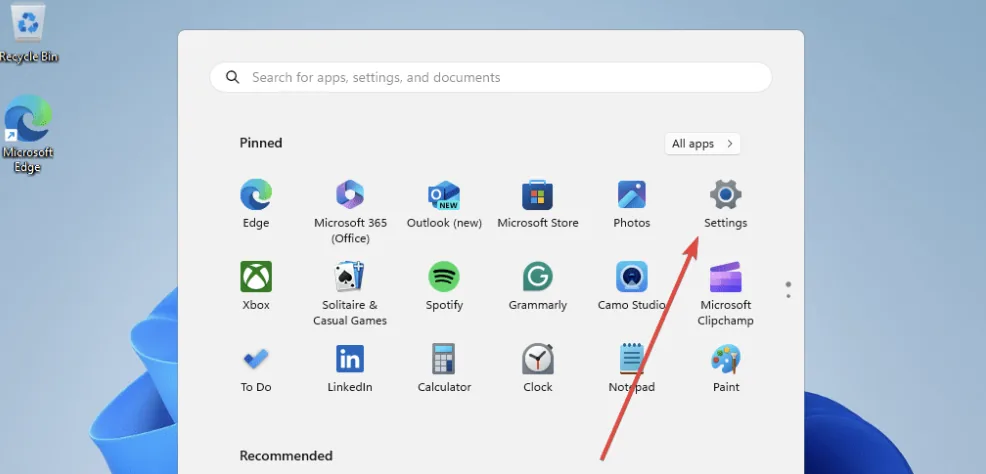
1. Click Start → Settings.
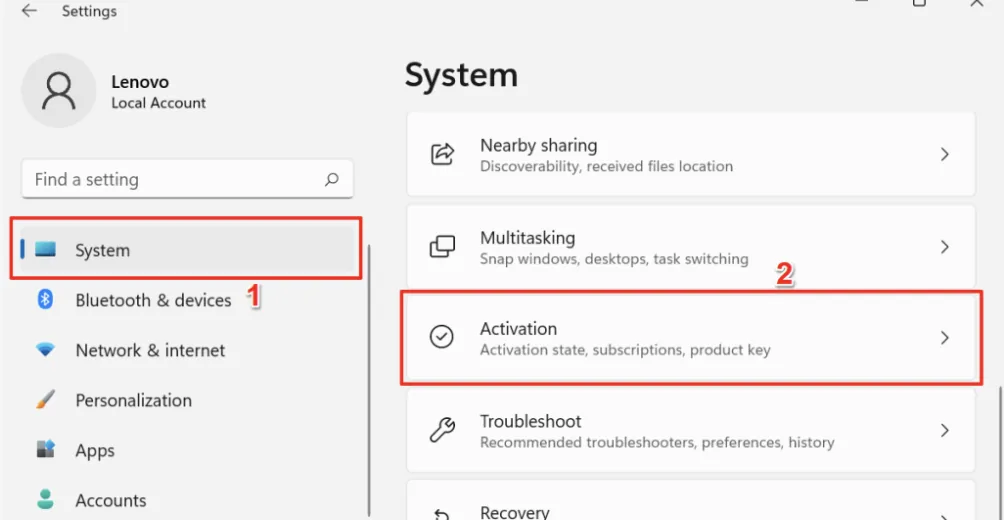
2. Go to System → Activation. On Windows 10: Update & Security → Activation.
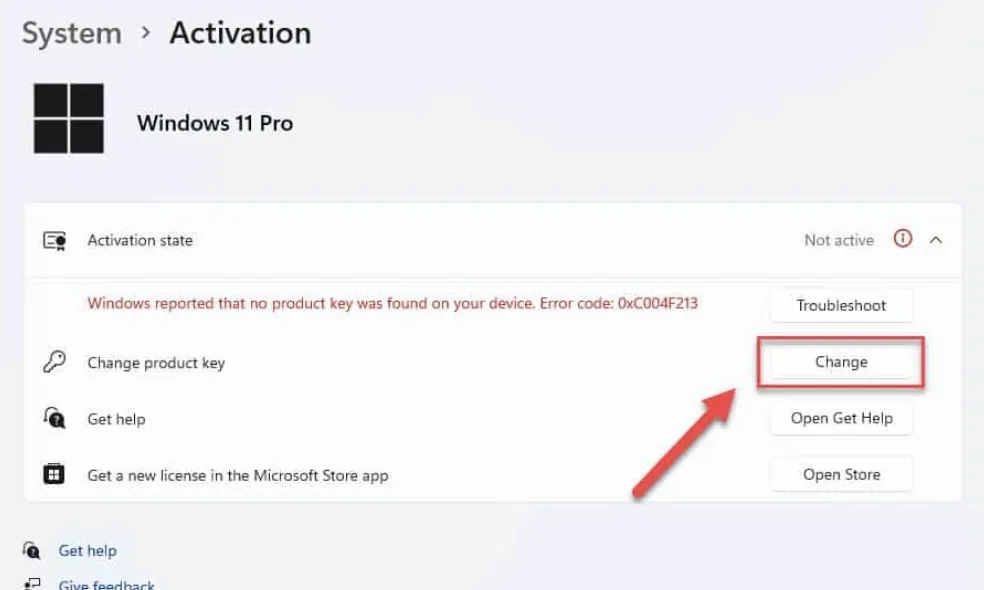
3. Next to Change product key, click Change and enter your 25-character key (XXXXX-XXXXX-XXXXX-XXXXX-XXXXX).
Step 2: Open phone activation and copy your Installation ID
1. Back on the Activation page, click “Activate by phone”. On newer Windows 11 builds the same option is called “Activate using the Product Activation Portal”, with an “Automated Help” button.


slui 4 and press Enter. This opens the phone activation window directly.2. Select your country or region and click Next.
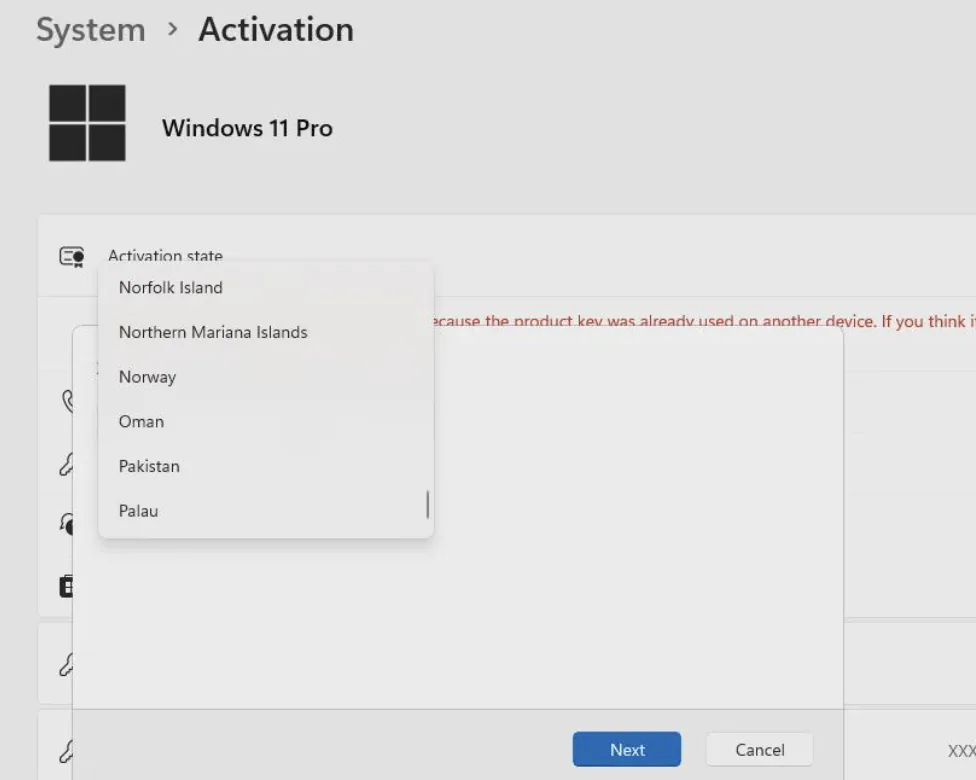
3. Windows now shows your Installation ID (IID): 9 groups of digits. Leave this window open; you will type the Confirmation ID into it.
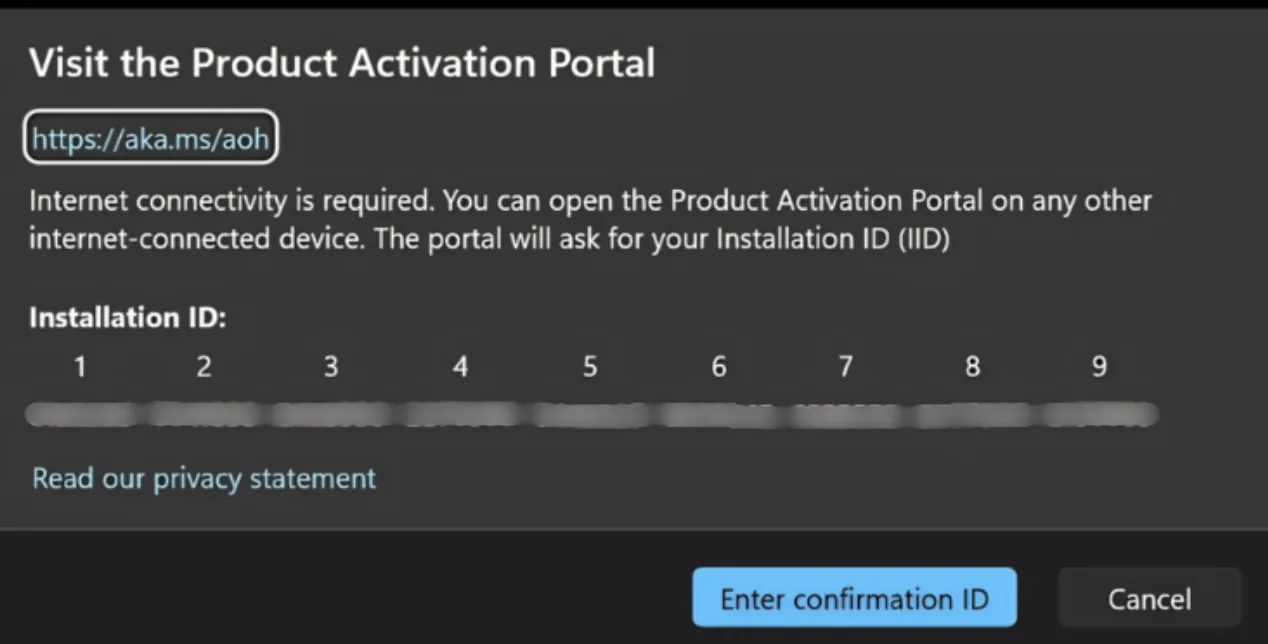
Ignore the phone number if one is shown. Calling it no longer works.
Step 3: Get your Confirmation ID
Pick one of the two options. Both work from your phone.
Option A: Microsoft Product Activation Portal (aka.ms/aoh)
Works for any genuine key. Requires a Microsoft account.
Option B: Bitcodes Get Confirmation ID tool
For keys bought on bitcodes.co. No Microsoft account needed.
Step 4: Enter the Confirmation ID
Alternative: activate from the command line
Useful for servers, Windows Server Core, or if the Settings app gives you trouble. Open Command Prompt as administrator and run:
:: 1. Install the product key
slmgr /ipk XXXXX-XXXXX-XXXXX-XXXXX-XXXXX

:: 2. Show the Installation ID
slmgr /dti

:: 3. Apply the Confirmation ID (all digits, no spaces or dashes)
slmgr /atp CONFIRMATIONID

:: 4. Check the activation status
slmgr /xpr
Get the Confirmation ID for step 3 exactly as described in Step 3.
Troubleshooting common errors
| Problem | What to do |
|---|---|
| 0xC004F213 | No product key was found on the device. Enter your key first (Step 1), then continue with phone activation. |
| 0xC004C008 | The key has already been activated online on another device. Use the Installation ID method in this guide. If the portal also refuses it, contact your seller. |
| 0xC004C003 | The key is blocked or invalid. It cannot be activated; contact your seller for a replacement. |
| Portal rejects the IID | Check that you selected the right product and version, and that every digit was typed exactly as shown. The IID changes if you enter a different key, so always use the one currently on screen. |
| CID not accepted | Re-type all 8 groups carefully. Make sure the CID was generated from the IID currently shown in the activation window. |
Frequently asked questions
Can you still activate Windows by phone in 2026?
Not by calling. Since 3 December 2025, Microsoft’s activation phone line only plays a recorded message that sends you to aka.ms/aoh. The “Activate by phone” screen in Windows still works, though: you take the Installation ID from it, get a Confirmation ID online, and enter it back into Windows.
Does the PC need an internet connection?
No. The PC you are activating can stay offline. Only the device you use to get the Confirmation ID (for example your phone) needs internet.
Do I need a Microsoft account?
Microsoft’s Product Activation Portal (aka.ms/aoh) requires you to sign in with a Microsoft account. If you bought your key from Bitcodes, you can use our Get Confirmation ID tool instead, which only needs your order number and email.
Which Windows versions does this work for?
The Installation ID method works for Windows 11 and Windows 10, including Home, Pro and Enterprise editions, and for Windows Server. On Windows 10 the activation settings are under Settings → Update & Security → Activation.
What is the difference between the Installation ID and the Confirmation ID?
The Installation ID (IID) is generated by your PC from your product key and hardware and is shown in 9 groups of digits. The Confirmation ID (CID) is the answer Microsoft gives for that IID, shown in 8 groups (A to H). Typing the CID into Windows completes activation.
Is this an official activation method?
Yes. Installation ID / Confirmation ID activation is Microsoft’s own offline activation process. Only the way you receive the Confirmation ID has moved from the phone line to the web.
Need a Windows license?
Genuine Windows keys, with help from our team if activation gives you any trouble.